Debugging Business Rules ServiceNow

Debugging Business Rules

So far in this module, debugging has primarily been:
  • Using the Script Editor to find JavaScript syntax errors
  • Examining scripts to look for errors
  • Verifying the trigger is configured correctly
The strategies used so far are useful but are inadequate for fully debugging. Additional debugging strategies are:
  • System Logs
  • Debug Business Rules (Details)
  • JavaScript Debugger

System Logs

The scoped GlideSystem API has logging methods:
  • gs.info()
  • gs.warning()
  • gs.error()
  • gs.debug() (must be enabled)
All of the logging methods write to the System Log. Pass strings, variables that resolve to strings, or methods that resolve to strings into the logging methods.
gs.error("The value of the Short description field is " + short_description);
To view the log messages, open System Logs > System Log > Application Logs from the Application Navigator in the main ServiceNow browser window (not Studio).
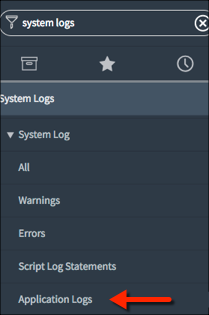
Open the Application Log module from the Application Navigator
This script uses the info(), warn(), and error() methods.
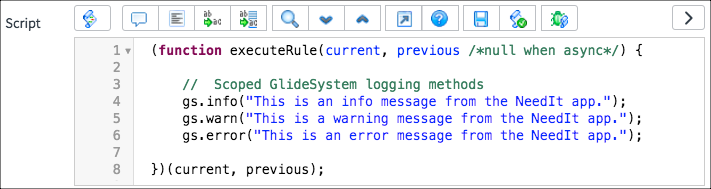
The debug script
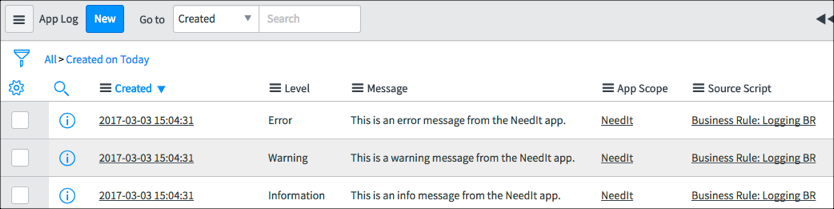
The log messages display the time created, verbosity level, message, scope, and script name. The application log
The scoped GlideSystem API also has a gs.debug() method. By default, debug information is not logged even if the gs.debug() method is used in a script. To enable the gs.debug() method, use the Application Navigator to open System Applications > Applications. Click on the application name to open the application record (Don’t click the Edit button for the application as that opens the application for editing in Studio.) In the Related Links section, click the Enable Session Debug link. This option writes debug information to the bottom of forms and not to the system log.
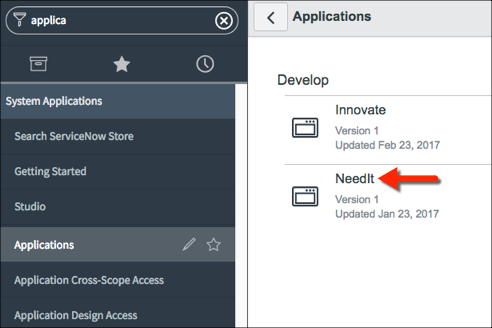
Opening an Application Record

Debug Business Rules (Details)

To debug the Condition field script, enable detailed Business Rule Debugging. Use the Application Navigator to open System Diagnostics >Session Debug > Debug Business Rules (Details). This module turns on logging of debug information to forms and lists. Open the form for a record of interest and force the Business Rule you are debugging to execute by doing whatever is necessary to trigger the Business Rule.
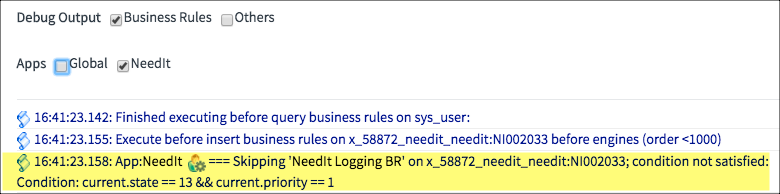
The Debug Business Rules (Details) module is the only way to debug Business Rule conditions
To turn off detailed Business Rule debugging, navigate to System Diagnostics > Session Debug > Disable All.

GlideDateTime ServiceNow

GlideDateTime

The scoped GlideDateTime class provides methods for performing operations on GlideDateTime objects, such as instantiating GlideDateTime objects or working with glide_date_time fields.
Use the GlideDateTime methods to perform date-time operations, such as instantiating a GlideDateTime object, performing date-time calculations, formatting a date-time, or converting between date-time formats. See the GlideDateTime API reference for a complete list of methods.
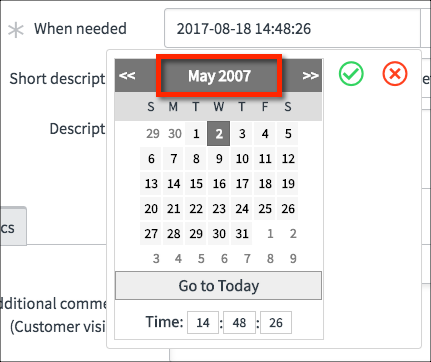
ServiceNow provides no default logic for managing dates in applications. The NeedIt application, for example, has a When needed field. There is no default logic preventing a user from setting the When needed date to a date in the past.
A user setting the When needed date to 2007.
If you write applications that use dates, you may need to script logic for the date fields. Examples include:
  • Prevent users from selecting dates in the past
  • Do not allow start dates to be after end dates
  • Do not allow new requests to be submitted for today
When working with the GlideDateTime methods, pay attention to the date format and time zones. Some methods use GMT/UTC and some use local time zones. Some methods use the date in milliseconds and some do not.
NOTE: There are some useful methods for managing dates in the GlideSystem API also. For example, gs.daysAgo().

GlideRecord Servicenow

GlideRecord

The GlideRecord class is the way to interact with the ServiceNow database from a script. See the GlideRecord API reference for a complete list of methods.
GlideRecord interactions start with a database query. The generalized strategy is:
  1. Create a GlideRecord object for the table of interest.
  2. Build the query condition(s).
  3. Execute the query.
  4. Apply script logic to records in the GlideRecord object.
Here is what the generalized strategy looks like in pseudo-code:
// 1. Create an object to store rows from a table
var myObj = new GlideRecord('table_name');

// 2. Build query
myObj.addQuery('field_name','operator','value');

// 3. Execute query 
myObj.query();

// 4. Process returned records
while(myObj.next()){
 //Logic you want to execute.  
 //Use myObj.field_name to reference record fields
}
NOTE: The GlideRecord API discussed here is a server-side API. There is a client-side GlideRecord API for global applications. The client-side GlideRecord API cannot be used in scoped applications.

Build the Query Condition(s)

Use the addQuery() method to add query conditions. The addQuery operators are:
  • Numbers: =, !=, >, >=, <, <=
  • Strings: =, !=, STARTSWITH, ENDSWITH, CONTAINS, DOESNOTCONTAIN
The addQuery() method is typically passed three arguments: field name, operator, and value. In some scripts you will see only two arguments: field name and value. When the addQuery() method is used without an operator, the operation is assumed to be =.
When there are multiple queries, each additional clause is treated as an AND.
Queries with no query conditions return all records from a table.
If a malformed query executes in runtime, all records from the table are returned. For more strict query control you can enable the glide.invalid_query.returns_no_rows property which returns no records for invalid queries.

Iterating through Returned Records

There are several strategies for iterating through returned records.
The next() method and a while loop iterates through all returned records to process script logic:
// iterate through all records in the GlideRecord and set the Priority field value to 4 (low priority).
// update the record in the database
while(myObj.next()){
  myObj.priority = 4;
  myObj.update(); 
}
The next() method and an if processes only the first record returned.
// Set the Priority field value to 4 (low priority) for the first record in the GlideRecord
// update the record in the database
if(myObj.next()){
  myObj.priority = 4;
  myObj.update(); 
}
You can also use the updateMultiple() method to update all records in a GlideRecord. If you use the updateMultiple() method you MUST set field values using the setValue() method.
// When using updateMultiple() use the setValue() method.  If you do myObj.priority = 4, ALL
// records in the table will be updated and not just the GlideRecord records.
myObj.setValue('priority',4);
myObj.updateMultiple();

Counting Records in a GlideRecord

The GlideRecord API has a method for counting the number of records returned by a query: getRowCount(). Do not use the getRowCount() method on a production instance as there could be a negative performance impact on the database. If you need to know the number of rows returned by a query on a production instance, use a GlideAggregate.
// If you need to know the row count for a query on a production instance do this
var count = new GlideAggregate('x_snc_needit_needit'); 
count.addAggregate('COUNT'); 
count.query(); 
var recs = 0; 
 if (count.next()){ 
   recs = count.getAggregate('COUNT');
  }
gs.info("Returned number of rows = " +recs);

// Don't do this on a production instance. 
var myObj = new GlideRecord('x_snc_needit_needit');
myObj.query();
gs.info("Returned record count = " + myObj.getRowCount());

Encoded Queries

As already discussed, if there are multiple conditions in query, the conditions are ANDed. If you want to use ORs or if you have a technically complex query, use encoded queries. The code for using an encoded query looks like this:
var myObj = new GlideRecord("x_snc_needit_needit");
myObj.addEncodedQuery('<your_encoded_query>');
myObj.query();
while(myObj.next()){
  // Logic you want to execute for the GlideRecord records
}
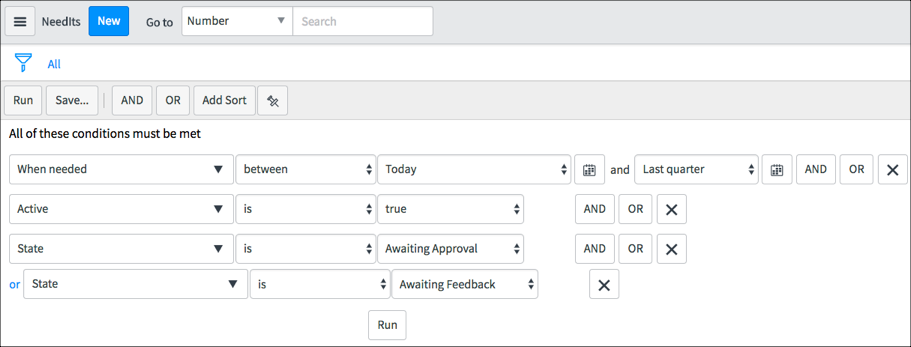
The trick to making this work is to know the encoded query syntax. The syntax is not documented so the best thing to do is let ServiceNow build the encoded query for you. In the main ServiceNow browser window, use the Application Navigator to open the list for the table of interest. If there is no module to open the list, type <table_name>.list in the filter field in the Application Navigator.
Use the Filter to build the query condition.
A complicated query
Click the Run button to execute the query. Right-click the breadcrumbs and select Copy query. Where you click in the breadcrumbs matters. The copied query includes the condition you right-click on and all conditions to the left. To copy the entire query, right-click on the condition farthest to the right.
Copying the query
Return to the script and paste the encoded query into the addEncodedQuery() method. Be sure to enclose the encoded query in "" or ’’.
var myObj = new GlideRecord("x_snc_needit_needit");
myObj.addEncodedQuery("u_when_neededBETWEENjavascript:gs.daysAgoStart(0)@javascript:gs.quartersAgoEnd(1)^active=true^state=14^ORstate=16");
 myObj.query();
 while(myObj.next()){
  // Logic you want to execute for the GlideRecord records
 }

GlideSystem ServiceNow

GlideSystem

Use the GlideSystem API to, for example:
  • Find information about the currently logged in user
  • Log messages (debug, error, warning, info)
  • Add messages to pages
  • Generate events
  • Execute scheduled jobs
  • And more…
See the GlideSystem API reference for a complete list of methods.
To use methods from the GlideSystem class, use the gs object:
gs.<method>
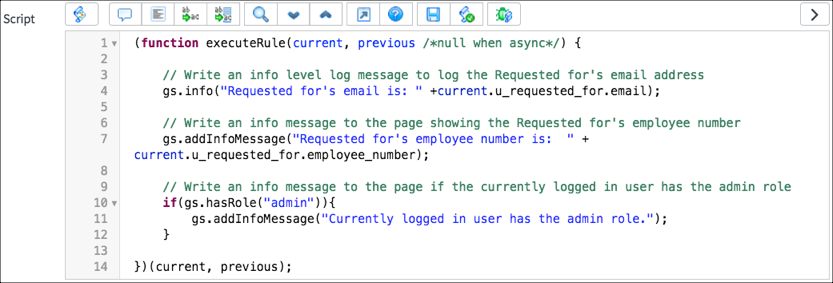
Examine the example script:
Script using GlideSystem methods
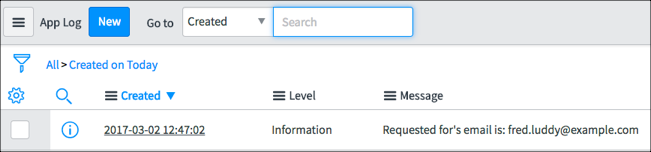
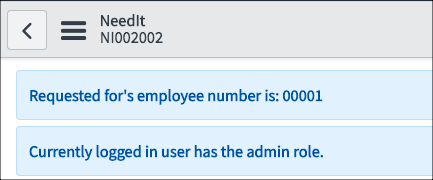
This sample script writes one message to the log and two messages to the screen:
The log message.
The messages written to the screen.

Server Side Scripts ServiceNow :

Server-side scripts execute on the ServiceNow server or database. Scripts in ServiceNow can do many, many things. Examples of things server-side scripts can do include:
  • Update record fields when a database query runs
  • Set field values on related records when a record is saved
  • Manage failed log in attempts
  • Determine if a user has a specific role
  • Send email
  • Generate and respond to events
  • Compare two dates to determine which comes first chronologically
  • Determine if today is a weekend or weekday
  • Calculate the date when the next quarter starts
  • Log messages
  • Initiate integration and API calls to other systems
  • Send REST messages and retrieve results

Two types of server-side scripts:
  • Business Rules
  • Script Includes

Business Rules

Business Rules are server-side logic which execute when database records are queried, updated, inserted, or deleted. Business Rules respond to database interactions regardless of access method: for example, users interacting with records through forms or lists, web services, data imports (configurable). Business Rules do not monitor forms or form fields but do execute their logic when forms interact with the database such as when a record is saved, updated, or submitted.

The When option determines when, relative to database access, Business Rule logic executes:
  • before
  • after
  • async
  • display
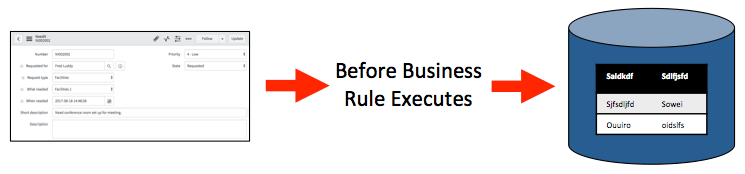
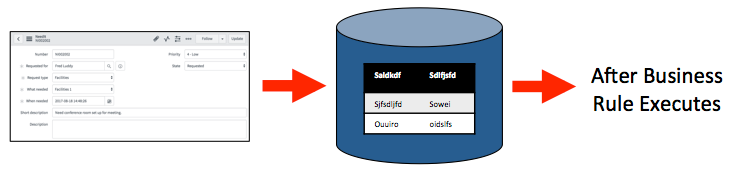
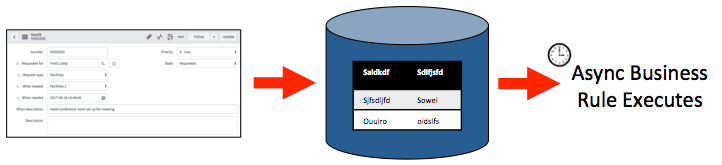
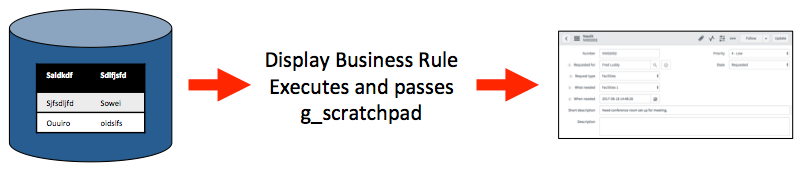
IMPORTANT: Business Rules do NOT monitor forms. The forms shown in the graphics on this page represent a user interacting with the database by loading and saving records in a form.

Before

Before Business Rules execute their logic before a database operation occurs. Use before Business Rules when field values on a record need to be modified before the database access occurs. Before Business Rules run before the database operation so no extra operations are required. For example, if you want to concatenate two fields values and write the concatenated values to the Description field.
Before Business Rules execute before the database operation occurs.

After

After Business Rules execute their logic immediately after a database operation occurs and before the resulting form is rendered for the user. Use after Business Rules when no changes are needed to the record being accessed in the database. For example, use an after Business Rule when updates need to be made to a record related to the record accessed. If a record has child records use an after Business Rules to propagate a change from the parent record to the children.
After Business Rules execute after the database operation occurs.

Async

Like after Business Rules, async Business Rules execute their logic after a database operation occurs. Unlike after Business Rules, async Business Rules execute asynchronously. Async Business Rules execute on a different processing thread than before or after Business Rules. They are queued by a scheduler to be run as soon as possible. This allows the current transaction to complete without waiting for the Business Rules execution to finish and prevents freezing a user’s screen. Use Async Business Rules when the logic can be executed in near real-time as opposed to real-time (after Business Rules). For example use async Business Rules to invoke web services through the REST API. Service level agreement (SLA) calculations are also typically done as async Business Rules.
Async Business Rules execute asynchronously after a database operation occurs.
To see async Business Rules queued up for execution, use the Application Navigator in the main ServiceNow window (not Studio) to open System Scheduler > Scheduled Jobs > Scheduled Jobs. Look for Scheduled Job names starting with _ASYNC. They go in and out of the queue very quickly and can be hard to catch on the schedule.
DEVELOPER TIP: Use async Business Rules instead of after Business Rules whenever possible to benefit from executing on the scheduler thread.

Display

Display Business Rules execute their logic when a form loads and a record is loaded from the database. They must complete execution before control of the form is given to a user. The purpose of a display Business Rule is to populate an automatically instantiated object, g_scratchpad. The g_scratchpad object is passed from the display Business Rule to the client-side for use by client-side scripts. Recall that when scripting on the client-side, scripts only have access to fields and field values for fields on the form and not all of the fields from the database. Use the g_scratchpad object to pass data to the client-side without modifying the form. The g_scratchpad object has no default properties.
Display Business Rules pass data for use by client-side scripts.

Business Rule Process Flow

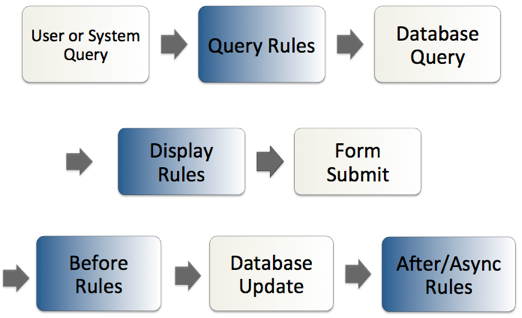
A table can have multiple Business Rules of different when types. The order in which the Business Rules execute is:
User or system query, query rules, database query, display, form submit, before rules, database update, after, async


Business Rule Actions

Business Rule Actions are a configurable way to:
  • Set field values
  • Add a message to a form
  • Abort the Business Rule execution

Set Field Values

The Set field values option allows you to set values of fields without scripting. Values can be:
  • Hard coded - To
  • The same value as the value of another field - Same as
  • Dynamically determined - To (dynamic)
Only reference fields have the dynamic option.
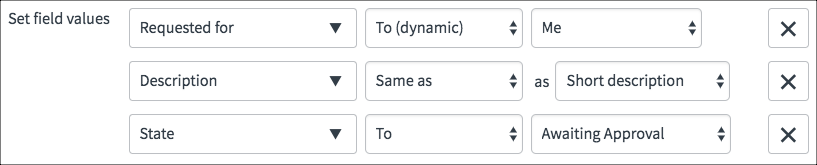
Set field value options
In the example, the Requested for value is dynamically set to the currently logged in user as determined at runtime. The Description field has the same value as the Short description field. The State field is hard coded to the value Awaiting Approval.

Add Message

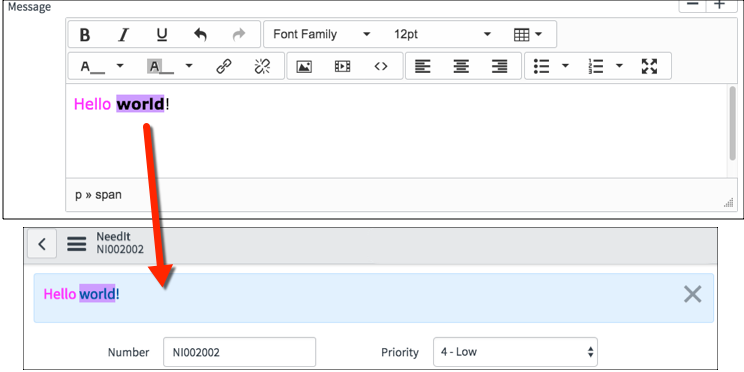
Use the Add message field to add a message to the top of a page. Although the message editor allows movies and images, only text renders on the pages. Use color, fonts, and highlighting effectively. The example text was chosen to demonstrate the types of effects that are available and should not be considered an example of effective styling.
Set message example

Abort Action

The Abort action option stops execution of the Business Rule and aborts the database operation. When the Abort action option is selected, you can use the Add Message option to print a message to the screen but no other options are available. Use this option when the script logic determines the database operation should not be performed.

Business Rule Scripts

Business Rules scripts use the server-side APIs to take actions. Those actions could be, but are not limited to:
  • Invoking web services
  • Changing field values
  • Modifying date formats
  • Generating events
  • Writing log messages
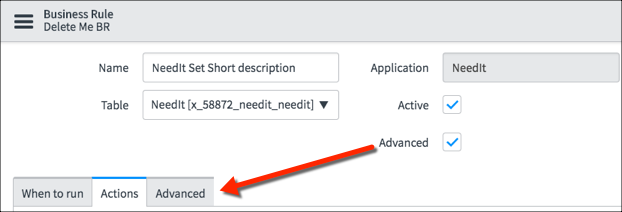
The Advanced option must be selected to write Business Rule scripts. The scripting fields are in the Advanced section.
The Advanced option must be selected to write scripts.
There are two fields for scripting in the Advanced section:
  • Condition
  • Script

current and previous

Business Rules often use the current and previous objects in their script logic.
The current object is automatically instantiated from the GlideRecord class. The current object’s properties are all the fields for a record and all the GlideRecord methods. The property values are the values as they exist in the runtime environment.
The previous object is automatically instantiated from the GlideRecord class. It has as its properties all fields from a record. The property values are the values for the record fields when they were loaded from the database and before any changes were made. The previous object is not available for use in async Business Rules.
The syntax for using the current or previous object in a script is:
<object_name>.<field_property>
An example script using current and previous:
// If the current value of the description field is the same as when the
// record was loaded from the database, stop executing the script
if(current.description == previous.description){
 return;
}

Condition Field

Use the Condition field to write Javascript to specify when the Business Rule script should execute. Using the Condition field rather than writing condition logic directly in the Script field avoids loading unnecessary script logic. The Business Rule script logic only executes when the Condition field returns true. If the Condition field is empty, the field returns true.
There is a special consideration for async Business Rules and the Condition field. Because async Business Rules are separated in time from the database operation which launched the Business Rule, there is a possibility of changes to the record between when the condition was tested and when the async Business Rule runs. To re-evaluate async Business Rule conditions before running, set the system property, glide.businessrule.async_condition_check, to true. You can find information about setting system properties on the ServiceNow docs site.
The Condition script is an expression which returns true or false. If the expression evaluates to true, the Business Rule runs. If the condition evaluates to false, the Business Rule does not run.
This is CORRECT syntax for a condition script:
current.short_description == "Hello world"
This is INCORRECT syntax for a condition script:
if(current.short_description == "Hello world"){}
Some example condition scripts:
The value of the State field changed from anything else to a 6:
current.state.changesTo(6)
The Short description field has a value:
!current.short_description.nil()
The value of the Short description field is different than when the record was loaded:
current.short_description != previous.short_description
The examples use methods from the server-side API.
  • The changesTo() method checks to see if a field value has changed from something else to a hardcoded value
  • The nil() method checks to see if a field value is NULL or the empty string
Notice that condition logic is a single JavaScript statement and does not end with a semicolon.

Script Field

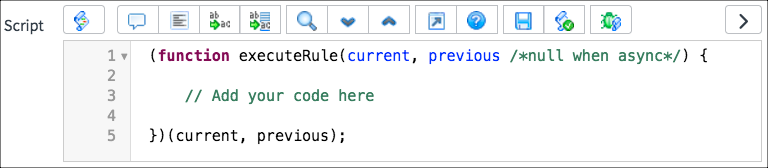
The Script field is pre-populated with a template:
The executeRule function template is automatically inserted.
Developers write their code inside the executeRule function. The current and previous objects are automatically passed to the executeRule function.
Notice the template syntax. This type of function syntax is known in JavaScript as a self-invoking function or an Immediately Invoked Function Expression (IIFE). This type of function is immediately invoked after it is defined. ServiceNow manages the function and when it is invoked.

Dot-walking

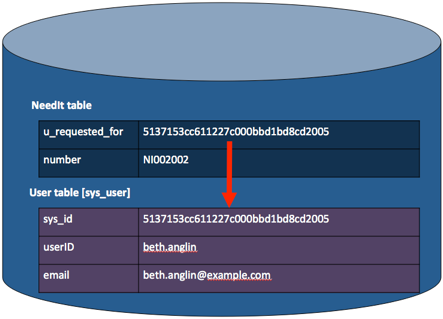
Dot-walking allows direct scripting access to fields and field values on related records. For example, the NeedIt table has a reference field called Requested for. The Requested for field references records from the Users (sys_user) table. Reference fields contain the sys_id of the record from the related table.
The Requested for field references a record on the User table.
When scripting, use dot-walking to retrieve or set field values on related records. The syntax is:
<object>.<related_object>.<field_name>
For example:
if(current.u_requested_for.email == "beth.anglin@example.com"){  
  //logic here
}
The example script checks to see if the NeedIt record’s Requested for person’s email address is beth.anglin@example.com.
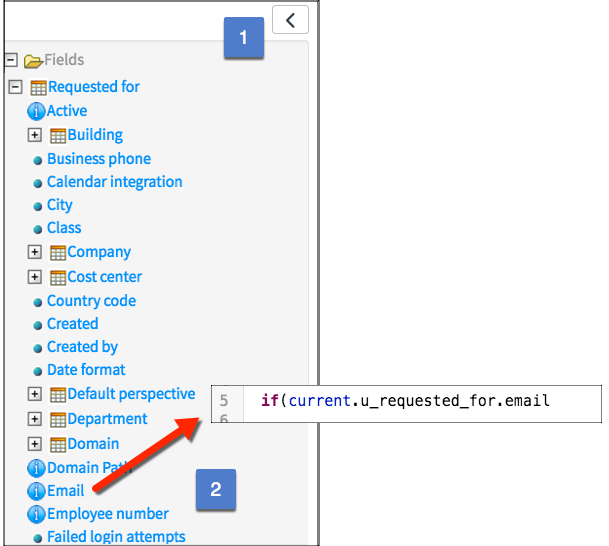
To easily create dot-walking syntax, use the Script tree in the Script field:
The Script Tree
  1. Toggle the Script tree by clicking the Script Tree button.
  2. Use the tree to navigate to the field of interest. Click the field name to create the dot-walking syntax in the script editor starting from the current object.
Dot-walking syntax can be several levels deep. This script finds the latitude for the company related to the user in the Requested for field.
current.u_requested_for.company.latitude

Client Script VS UI Policies

Client Scripts vs. UI Policies

Client Scripts and UI Policies both execute client-side logic and use the same API. Both are used to manage forms and their fields. When developing an application, how can you decide which client-side script type to use? Use this table to determine which type is best suited to your application’s needs:
Criteria Client Script UI Policy
Execute on form load Yes Yes
Execute on form save/submit/update Yes No
Execute on form field value change Yes Yes
Have access to field’s old value Yes No
Execute after Client Scripts No Yes
Set field attributes with no scripting No Yes
Require control over order of execution *Yes Yes
*Although the Order field is not on the Client Script form baseline you can customize the form to add it.
UI Policies execute after Client Scripts. If there is conflicting logic between a Client Script and a UI Policy, the UI Policy logic applies.